If you've been a Quicken user making the transition to Quicken Essentials for Mac you're probably interested in migrating your old data file. Quicken Essentials for Mac comes with a separate application for translating data files, the Quicken File Exchange Utility. Let's see how well this utility works.
Sunday, April 25, 2010


Friday, April 23, 2010
$20 rebate for Quicken Essentials for Mac Early Adopters; Improvements Promised
Intuit has announced today that they are dropping the price for Quicken Essentials for Mac from $69 to $49, and is offering a $20 rebate to those of us who bought the software before April 19, 2010. Go to quicken.com/macrefund to find out the details of this rebate. Act fast -- the rebate period ends on May 31st.
In the same email that announced the rebate, the Quicken team has made promises of updates in the months to come. By the end of April, you'll be able to password-protect your data file and export transaction data to spreadsheets. By August, they're promising that we'll be able to:
In the same email that announced the rebate, the Quicken team has made promises of updates in the months to come. By the end of April, you'll be able to password-protect your data file and export transaction data to spreadsheets. By August, they're promising that we'll be able to:
- Get a complete picture of current net worth by entering investment holdings from brokerages that do not connect to Quicken
- Better understand spending by comparing between different time periods
- Export tax-deductible expenses to tax filing programs like TurboTax
- Track a budget across several months
We welcome these changes, and we'll check 'em out when we get them. (The second bullet point sounds like they're talking about the comparison report, which we noted was missing in action in our post about reports).
Update 4/24/10: Feel free to use this feedback form to tell Intuit what you think about Quicken Essentials for Mac.
Update 4/24/10: Feel free to use this feedback form to tell Intuit what you think about Quicken Essentials for Mac.
Monday, April 5, 2010
Reports in Quicken Essentials for Mac
This is the latest in our series deconstructing Quicken Essentials for Mac.
Quicken Essentials for Mac comes with a significantly reduced set of reports, as compared to previous versions of Quicken. There are essentially three different types of reports:
I've already given my opinion on the spending cloud. Let's focus on the other two reports.
Quicken Essentials for Mac comes with a significantly reduced set of reports, as compared to previous versions of Quicken. There are essentially three different types of reports:
- A monthly summary of transactions
- A category summary report
- A "spending cloud"
I've already given my opinion on the spending cloud. Let's focus on the other two reports.
Wednesday, March 31, 2010
Budgets in Quicken Essentials for Mac
I've written before about how budgeting as done by older versions of Quicken falls somewhere between less than useful and misleading. I knew that Quicken Essentials for Mac wouldn't implement envelope budgeting. So, while I'm dubious about its utility, we're aiming for completeness here, so I figured I should give QEM's budgeting a whirl.
Tuesday, March 30, 2010
Downloading and Matching Transactions
In my first looks, Quicken Essentials for Mac does a good job of downloading transactions and matching those transactions to ones that I've entered myself. There are problems with manual matching and unmatching of transactions.
First, a couple of screenshots. Before downloading -- the two top transactions were previously downloaded, and the rest are ones that I entered manually:

After downloading -- blue dots next to the ones that were downloaded and matched. Notice that there's a Safeway transaction that wasn't downloaded; my bank is still listing it as a pending transaction.

The downloading and matching was all accomplished by choosing Update from the Accounts menu (or by using the Update toolbar button), and was fully automated -- no confirmation of matches involved.
Manual Matching and Unmatching
One of the annoyances with older versions of Quicken is that the matching of downloaded transactions would fail:
- I found that it would sometimes mismatch transactions of the same amount -- if I took out $20 in cash, and went to the store and spent $20, it would sometimes swap the two transactions.
- If I had two transactions to the same payee with the same amount, but at different points in time, and only one had cleared, it would match the later transaction instead of the earlier one.
So, I'm naturally distrustful of matching transactions. How do I know it's matched against the right transactions? What if QEM makes a mistake? Can you manually match or unmatch a transaction? Let's take each of these in turn.
Scheduled Transactions - Tips and Annoyances
Tips
You have many choices on repeatability:
- Weekly (or every 2, 3, 4, etc. weeks, with a shortcut for 2 and 4 weeks)
- Monthly (or every 2, 3, 4, etc. months, with a shortcut for quarterly)
- Yearly (or every 2, 3, 4, etc. years)
- Twice a month (e.g., the 1st and 15th)
- A special repeatability for estimated taxes (the 15th of January, April, June, and September)
Scheduled transactions can end after a certain number of repetitions, on a certain date, or continue in perpetuity.
Annoyances
One thing that's missing from scheduled transactions that existed in previous versions of Quicken is the ability to indicate whether a scheduled transaction:
- Doesn't vary, and should be automatically entered
- Doesn't vary, but shouldn't be entered automatically
- Varies, and needs reminding a certain number of days in advance.

This annoyance manifests itself in how scheduled transactions actually get entered. As I mentioned in my previous post, upcoming scheduled transactions appear in the appropriate register. When the day for a scheduled transaction comes, however, nothing really happens -- the scheduled transaction is still in the register, and you have to take action to have it get entered.
 Specifically, you need to use the "Mark as Paid"/"Mark as Deposited" toolbar button (or action under the Transactions menu). When you do, the transaction is updated, but with the specific amount that you used when you first set up the scheduled transaction (acting like all scheduled transactions should be treated like #2 above). This is annoying, since many of my scheduled transactions do vary.
Getting Started - Scheduled Transactions
When you start from scratch with Quicken Essentials for Mac, the application sets up three tasks for you:
I've covered account setup in a previous post. Let's look at scheduled transactions!
- See Where you Money Goes (setting up accounts)
- Stay on Top of Monthly Bills (scheduled transactions)
- Set Goals to Save Money (budgets)
I've covered account setup in a previous post. Let's look at scheduled transactions!
Monday, March 29, 2010
Useless Spending Cloud
One of the gripes about Quicken Essentials for Mac is that there are fewer reporting options available. The QEM team did find time to put in a "spending cloud"


The deal with the cloud is that it shows you where you're spending your money, using font sizes to show relative amounts. The idea of a tag cloud isn't new, but this seems pretty useless to me. Yes, our mortgage dwarfs the rest of our spending. Not much insight there.
What's worse is that it seems like QEM is double-counting some of the categories. I've got my Utilities category subdivided into areas like Water, Gas and Electric, and Phone. Looking at the cloud, there's a slightly larger label for Utilities, but there's also labels for the subcategories as well.
Instead of spending time on the spending cloud, it would be nice if the QEM team would figure out something like the spending comparison report.
Sunday, March 28, 2010
Customizing Categories; Creating Subcategories
Quicken Essentials for Mac comes with a standard set of categories, but you'll want to customize them. Use the Window menu to pull up the Categories window, then click the Edit button in the lower-right corner to switch to editing mode:
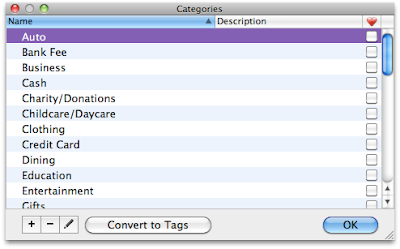
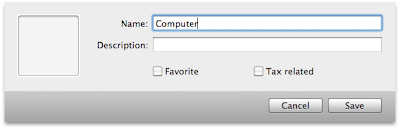

The little plus and minus buttons do just what you'd expect - add and delete categories. Adding is simple enough:

Deleting is also easy, and there's a warning message if you try to delete a category that's in use by one or more of your transactions.
One thing I like to do is to create subcategories. While I don't go bonkers, I do like separating some categories into different parts. For example, I like putting gas for the car, car maintenance, and car registration fees all under "Auto". There's two ways to do this in QEM:
Working with Categories
As you can see from the last couple of posts, I started my testing of Quicken Essentials for Mac by starting from scratch, rather than importing my Quicken 2006 file. I'll get to that later.


Assigning a category to those two USPS transactions is simple enough: double-click on the category column for that transaction and you go into edit mode:

You can then either click on one of the categories, or start typing to narrow down the list:


Starting from scratch, QEM downloaded about three months worth of transactions. One of the things that it did was to assign categories to most of the transactions:

As you can see, it did an okay job. It correctly categorized the two Dining transactions, and figured out that Trader Joe's is a grocery store. It didn't know what to do with the post office transactions, and said that the Amazon purchase was a gift when it wasn't.
QEM comes with a starter set of categories:


You can then either click on one of the categories, or start typing to narrow down the list:

Hit return to finish:

Okay, two things to be careful about:
- I like typing. When the shortened lists of categories came up, like you see two pictures up, I wanted to be able to use arrow keys to pick a different category. I first tried using the right arrow key, since the categories are laid out in a grid, but that didn't work. You need to use the up and down arrow keys to cycle through. While this is just like how Quicken 2006 works, it was unexpected -- hitting the down arrow key to move right is weird.
- QEM will not warn you before creating a new category based on what you type:

Viewing Transactions in QEM
The most obvious change in Quicken Essentials for Mac is in the interface you use for looking at transactions. Gone is the checkbook metaphor - transactions are now in a pretty standard-looking table view:

This table view works just like other table views on the Mac:
- Click on a column header to sort by that header
- Drag a border in a column header to resize that column
The view shown above has the default column settings. Use the View menu or the little gear icon just over the scroll bar to select the columns you wish to view:


There's also a very Mac-like search box you can use to narrow down your transactions:

On the left-hand side of the table view is a sidebar (QEM calls it a source list) that's also a familiar Mac-like metaphor - use it to select different views of your data:

Overall, I'm not too sure how I feel about this new interface. The checkbook visual metaphor is one that Quicken had from the beginning, and it was a classic solution to a design problem - make the interface match what people were doing on paper, so that people would feel comfortable with it (and excited that the computer would do the math for you). Breaking away from this metaphor is going to be hard to adapt to.
(On the other hand, from a programming standpoint using standard Cocoa table views is a huge advantage. Huge. You don't have to write any code to do sorting by columns, you write just a view lines of code to do the neat search box, getting the different types of columns is pretty much a snap)
As a user, one advantage of this new interface is that it does reduce window clutter. Using Quicken 2006 I would often find myself with 4-5 windows open (checking account, savings account, bills, the overview screen).
Setting Up an Account in Quicken Essentials for Mac
The first thing you'll need to do after installing Quicken Essentials for Mac is set up a new account. QEM walks you through it, but the workflow is a little hurky.
QEM really wants you to use online banking features -- the first thing you'll be prompted to do is find your bank:
 QEM's list of banks has the familiar Mac search box. Type in the first few letters to find your bank:
Then, oddly, rather than entering your login information for your bank, you're prompted to create an account at Intuit:
 I already had an Intuit account from when I used to use TurboTax online, so I clicked on the (very tiny) link in the bottom right to indicate that I already had an Intuit login. I was then prompted to log in:
 and verify my email and postal addresses:
After successfully logging into my Intuit account, I was prompted to log into my bank:

It then asked me which of my accounts I wanted to add. I could also give them names and identify the types of accounts (checking, savings, mortgage):

And that's it!
Overall, the process was fairly straightforward. The only suggesting I'd make to the QEM people is that the order is off -- rather than asking for Intuit account information between asking to identify my bank and asking for my bank login information, ask for that all at once (at the beginning), then get my bank info.
Thursday, March 11, 2010
Quicken Essentials for Mac Installation
Installation of Quicken Essentials for Mac was very straightforward. Upon inserting the CD, the following window appears:
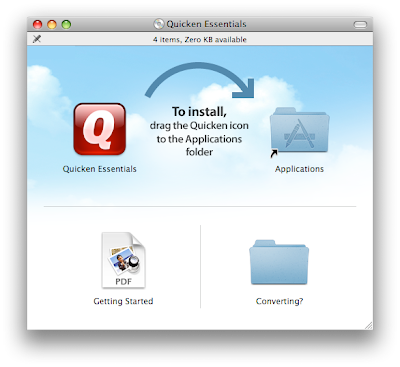 As with many Mac applications, installation simply consists of dragging the application to your Applications folder (and the CD provides a handy shortcut).
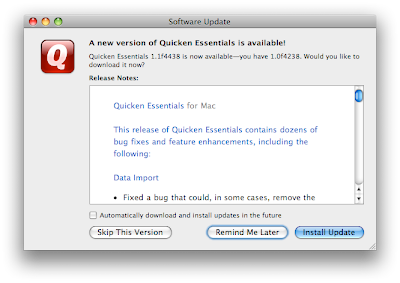
After installation I launched QEM, and was immediately encouraged to update the software from version 1.0f4238 to 1.1f4438 (gotta love those version numbers). Downloading and updating the software was again straightforward:
 Once the application updated an re-launched, I was left with the QEM overview screen. Nothing much to see here, since I hadn't set up any accounts or imported any data:
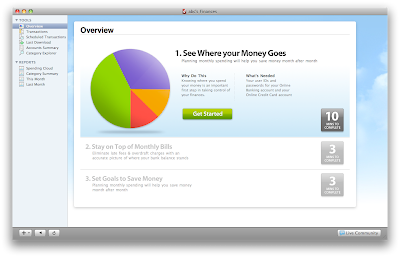
And we're off and running! Score two for Intuit -- installation and the update were very Mac-like. Also, I'll note that at no time was I asked for a serial number.
 As with many Mac applications, installation simply consists of dragging the application to your Applications folder (and the CD provides a handy shortcut).
The "Converting?" folder caught my attention. Inside is an application that those of you using previous versions of Quicken will need to use:
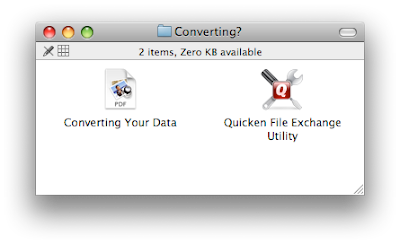 The conversion of your old Quicken data file isn't done in QEM itself, but by this separate Quicken File Exchange Utility. More on that later.
 The conversion of your old Quicken data file isn't done in QEM itself, but by this separate Quicken File Exchange Utility. More on that later.
After installation I launched QEM, and was immediately encouraged to update the software from version 1.0f4238 to 1.1f4438 (gotta love those version numbers). Downloading and updating the software was again straightforward:
 Once the application updated an re-launched, I was left with the QEM overview screen. Nothing much to see here, since I hadn't set up any accounts or imported any data:
And we're off and running! Score two for Intuit -- installation and the update were very Mac-like. Also, I'll note that at no time was I asked for a serial number.
Quicken Essentials for Mac Unboxing
My copy of Quicken Essentials for Mac arrived in the mail the other day. In the spirit of all things Mac, here's an unboxing.
Front:

An inside flap, touting features of the software:

The back of the box, with handy check marks indicating that this software can do at least nine things:

But wait -- the back of the box has some important details!
Detail #1 -- Intuit's 60-day money-back guarantee:


Detail #2 -- a warning that this version of Quicken doesn't do all of the things that you might be used to in a Quicken product:

The inside of the box contains a CD:

And a credit card offer:


On to installation!
Friday, February 26, 2010
Quicken Essentials for Mac Released!
Vaporware no longer -- Intuit has shipped Quicken Essentials for Mac! It's available for direct purchase and download from Intuit for $69.99 or you can save yourself $10 and get it from Amazon.
We'll be getting our hands on QEM soon, put it through its paces, and let you know what we think.
Thursday, February 18, 2010
Interview with Aaron Patzer
TUAW (The Unofficial Apple Weblog) has an interview with Aaron Patzer, formerly of Mint.com, who now heads Intuit's Personal Finance Group. It's a good read -- I'm maybe a little optimistic when I read things like this:
"When I first saw Quicken Financial Life, it had Cover Flow for no reason," he laughed. Cover Flow? No reason? Gone.
The Quicken Essentials for Mac site has been updated to indicate a Feb 25th release date. Will our long national nightmare finally come to an end?
Thursday, February 4, 2010
More details from the Intuit - Mint.com purchase
I'll admit, I've been slacking off on reading Intuit's Quicken Blog. Here's some interesting tidbits from the last few months.
As is typical in this type of acquisition, Intuit has decided to end-of-life their own product (Quicken Online), replacing it with what they just bought. Quicken Online is no longer open to new subscribers. Intuit is promising a seamless port from Quicken Online to Mint.com, and to bring some of the features that QO had.
In their December 21st post, there's some screen shots of what Quicken Essentials for Mac might wind up looking like. What's also interesting is that it seems that the Mint.com staff have become the group tasked with all of the Quicken products, regardless of platform. I'm maybe a little dismayed at the emphasis in this post on "glossy" features instead of, you know, useful features, or complete features.
Finally, in a post from earlier this week, Aaron Patzer (Mint.com's CEO, Intuit's new VP & GM of personal finance) says that the application is "just weeks away" from hitting the shelves. Says Aaron:
It’s a new era for the Mac product, with a new team at the helm, and gorgeous glossy design that will make you think it’s the missing iLife application. We can’t wait to show you.
Aaron -- we're looking forward to it. Remember -- cover flow is neat, but is no substitute for core functionality.
Wednesday, February 3, 2010
It's February 2010 -- will we finally see a new Quicken for the Mac?
February -- a time of groundhogs, cold weather, and...financial applications? According to Intuit's site, this month should see the final release of Quicken Essentials for Mac, the long-delayed, long-awaited update. They've been taking pre-orders for a while now, and have promised a February 2010 release date. Today's February 3rd -- will we see it in the next 25 days? Tick-tock, tick-tock!
Sunday, September 20, 2009
Intuit buys Mint.com
Intuit has announced that they intend to buy Mint.com.
This announcement makes me sad. While I'm not a Mint.com user, they were innovating in a space where Intuit was coasting. Mint.com was forcing Intuit to look at innovation (do you think they would have created a free online product otherwise?); this acquisition takes some of the pressure off.
Other reaction from 37signals, fastcompany.
Thursday, August 20, 2009
Review of Quicken Online
We've been waiting (and waiting...) for the new version of Quicken for the Mac. In the meantime, the folks at Intuit have been plugging Quicken Online as "a great way to get started", and as an alternative solution for those who can't wait for the next desktop version of Quicken for the Mac. And hey, it's free! I've taken a look at Quicken Online for a while now, and while there are certainly some neat features in Quicken Online, there are also some glaring omissions.
Quicken Online is designed to automatically download transaction information from your bank's online access. Setting up your accounts is straightforward -- you provide your financial institution and your login details, and Quicken Online finds the available accounts (checking, savings) and downloads the last 90 days worth of transactions.
What's Good
Automatic Categorization of Transactions
One of the neat features that Quicken Online does is it automatically tries to assign a category to each of your transactions. When I set it up with my checking account, it correctly guessed that Safeway transactions should be assigned to the Groceries category, that the AT&T bill should go into Utilities, and that Starbucks should be dining. There were transactions that it couldn't categorize, and it was fairly straightforward to assign a category. As you continue to use Quicken Online, it learns about the categories that you assign to transactions, so it can use the same category in the future.
Quicken Online comes with a starter set of categories:

You can add categories and rename the ones from the starter set. For example, the starter set has a category called "Childcare/Daycare", which I renamed "Daycare". I also added a category called "Cell Phone". User-defined categories are in blue.
Automatic Detection of Recurring Transactions
Another neat feature of Quicken Online is that, when it loads up the last 90 days worth of transactions, it examines them for recurring transactions, putting them in a section called "Upcoming Transactions". I found that it made mostly sensible entries into this list, including things like utility bills and my mortgage, but excluding transactions that repeat irregularly, like groceries and dining out. There were a couple of things it got wrong (for example, I have some bills that come once every 2 or 3 months, but it guessed that they were monthly).
Basic Tracking of Expenses
In addition to downloading transactions from your financial institution, Quicken Online allows you to enter transactions on your own. This is, of course, important, since you need to deduct that amount from the available balance in your account if you're going to avoid overdrafts. Quicken Online also has reminders for your upcoming transactions.
Quicken Online comes with a "Trends" section, allowing you to see how well your income and your expenses match up across different time periods (one month, three months, etc.). It also has a "Goals" section, where you can establish budgetary goals for different categories and track how closely your actual expenditures for the month.
What's Missing
Customization of Categories Lacking
While you can rename any of the starter set of categories and create categories of your own, there are some issues.
The most glaring omission is the lack of sub-categories. For example, while one of the starter categories is Utilities, there is no way to subdivide that further into types of utilities, like electric, phone, or water. Desktop versions of Quicken have had this ability for many many years. Sub-categories are very useful in grouping like types of categories together. In addition to utilities, typical categories that can get subdivided are Auto (fuel, service, registration) and Taxes (local, state, federal, property).
Also, one odd thing is that you cannot delete any of the starter set of categories. You can rename them, but you cannot delete them, even if you have no intention of ever using them. While most people could use most of the categories, I'm sure that anyone using Quicken Online would be able to find categories that they would just as soon delete.
No Split Transactions
This is possibly the most glaring omission in Quicken Online. I've been using desktop versions of Quicken since the mid-90's, and one of the features they've had for all this time is the ability to split the amount of a transaction into two or more categories. An obvious example in today's world would be going to the grocery store, buying some groceries, using a debit card, and getting $20 cash back. If the total bill came to $120, you'd want to split that into two categories -- $100 for groceries, and $20 for cash. Quicken Online doesn't let you do that. Each transaction is only allowed to have one category.
And, of course, the obvious
It probably goes without saying, but Quicken Online doesn't allow you to do our favorite kind of budgeting, envelope budgeting. (See here about why it's our favorite kind).
Final thoughts
Overall, Quicken Online has some features that are probably a little better than just looking at your account at your financial institution's web site. Being able to enter transactions and predict future expenses is a fundamental part of preventing overdraft. If Quicken Online supported split transactions and sub-categories, it would probably do about 90% of what I would want to be able to do with my desktop Quicken.
A final thought on security
As I mentioned at the top of the post, Quicken Online asks you to enter the login information you use to access your accounts at your financial institution. While Intuit is a corporation that has been around for a while, and they obviously have some security-minded people working for them, when I was handing over this information there was a little voice in the back of my head going "are you sure you want to hand this over?"
Subscribe to:
Posts (Atom)